
 Grafana Cloud
Monitor infrastructure
Kubernetes Monitoring
Explore your infrastructure
Grafana Cloud
Monitor infrastructure
Kubernetes Monitoring
Explore your infrastructureExplore your infrastructure with Kubernetes Monitoring
Kubernetes Monitoring offers visualization and analysis tools for you to:
- Evaluate the health, efficiency, and cost of Kubernetes infrastructure components.
- Analyze historical data as well as forecasts.
- View predictions created with machine learning.
- Manage alerts.
Navigate to Kubernetes Monitoring
- Navigate to your Grafana Cloud portal.
- In the menu, select the stack you want to work with.
- Click the Grafana logo icon.
- In the main menu, expand Observability, then click Kubernetes.
Search for a Kubernetes object
Click Search on the main menu or enter a term in the search box on the main page to navigate to the Search page. Here you can find any Kubernetes resource. Enter the name or a partial name into the search box and press Enter. The search results display.
As you type, autocomplete suggestions appear grouped by resource type (Clusters, Namespaces, Nodes, Workloads, Pods, and Containers). When you select a suggestion, you navigate to that resource’s detail page.
To narrow your search, you can:
- Enter a time range in the time range selector
- Refresh results manually or set an auto-refresh interval
- Click on any of the filter buttons:
- Clusters
- Nodes
- Namespaces
- Workloads
- Pods
- Containers
You can select more than one filter.
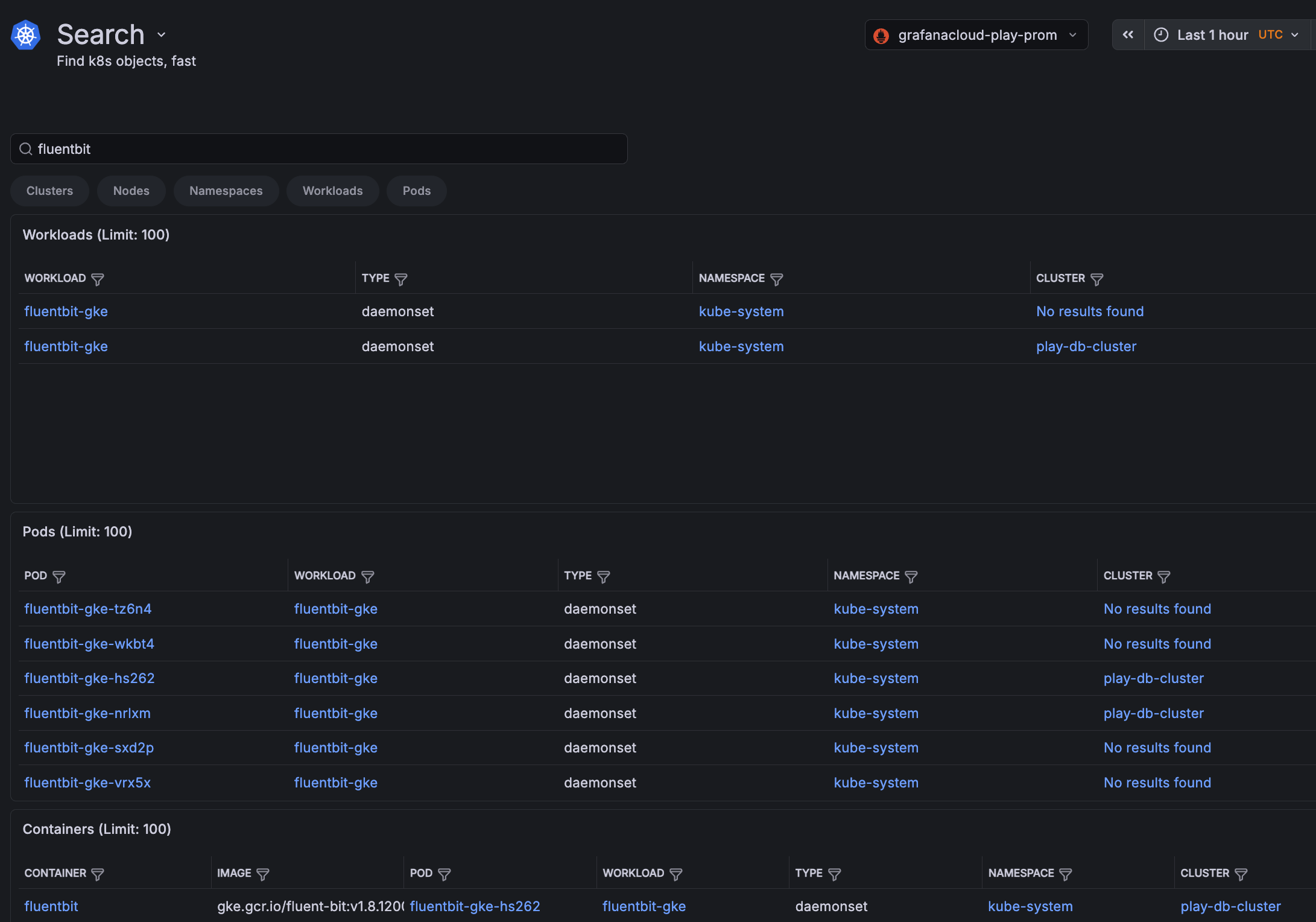
With Grafana Play, you can explore and see how it works, learning from practical examples to accelerate your development. This feature can be seen on the search results page.
Explore using the Kubernetes structure
Kubernetes Monitoring pages reflect the hierarchy of Kubernetes objects, so you can begin at any level above containers. Main pages include lists of Clusters, namespaces, workloads, and Nodes.
For example, the Cluster main page shows the list of your Clusters. When you click on a Cluster in the list, it opens the Cluster detail page. That page shows the details for the Cluster along with a list of Nodes within that Cluster.
You can continue to drill into a Node and see the list of Pods for that Node, all the way to the container level.
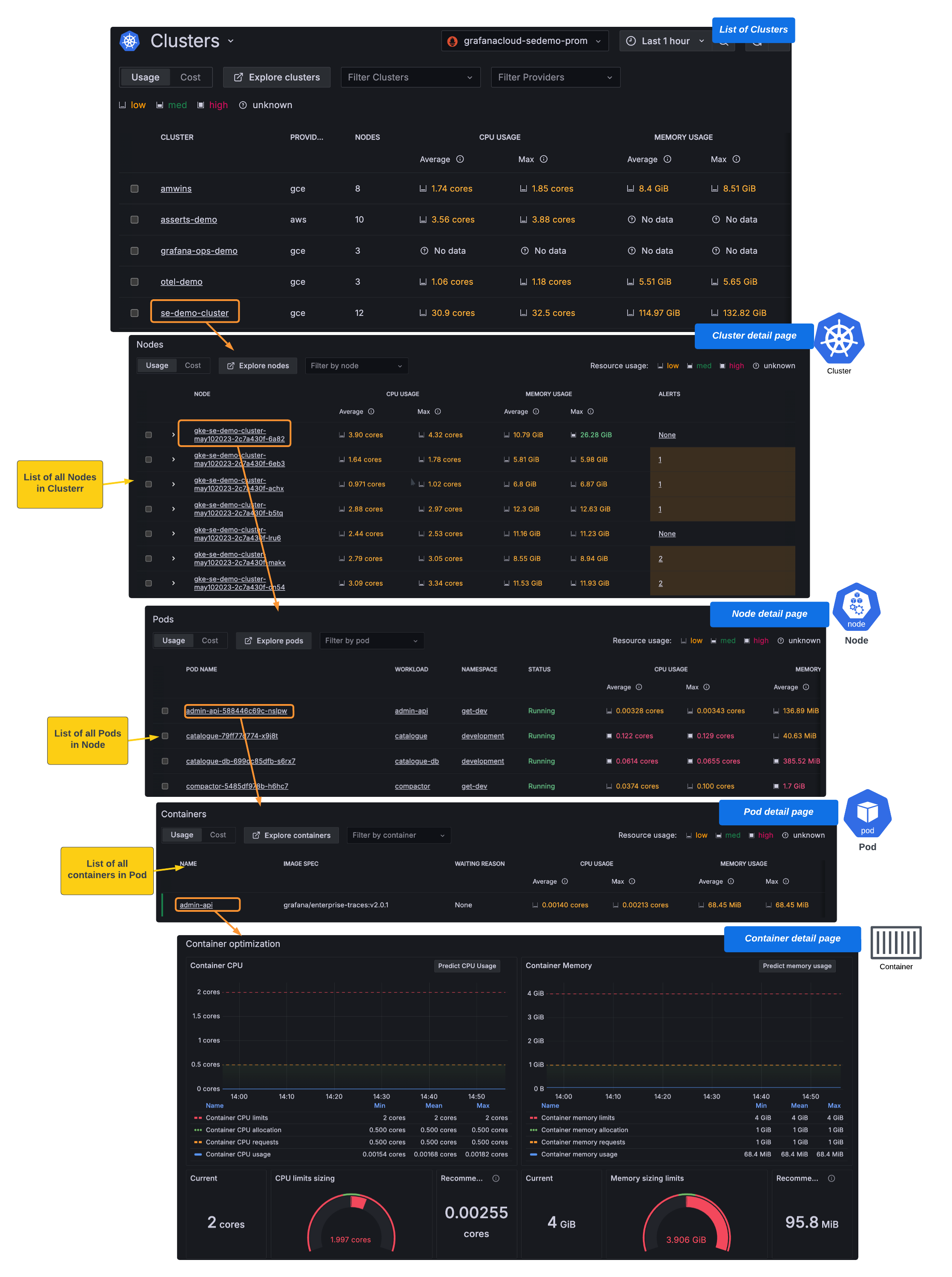
There are also main pages for Cluster configuration and cost. To manage alerts and efficiency, use the Alerts and Efficiency tabs on the Kubernetes Overview page.
On the Cluster detail page, click See Namespaces or See Workloads to navigate to the list of namespaces or workloads in that Cluster.
For additional navigation tips, refer to Navigation tips for Kubernetes Monitoring.
Navigation tips
Here are some tips and shortcuts for getting around in Kubernetes Monitoring.
With Grafana Play, you can explore and see how it works, learning from practical examples to accelerate your development. This feature can be seen on the Kubernetes Monitoring Overview page.
Jump between main pages
From any main page, click the icon beside the page title to see the menu of all main pages. Then click the page you want to open.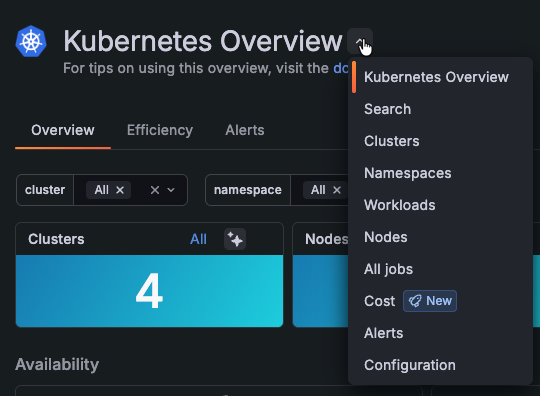
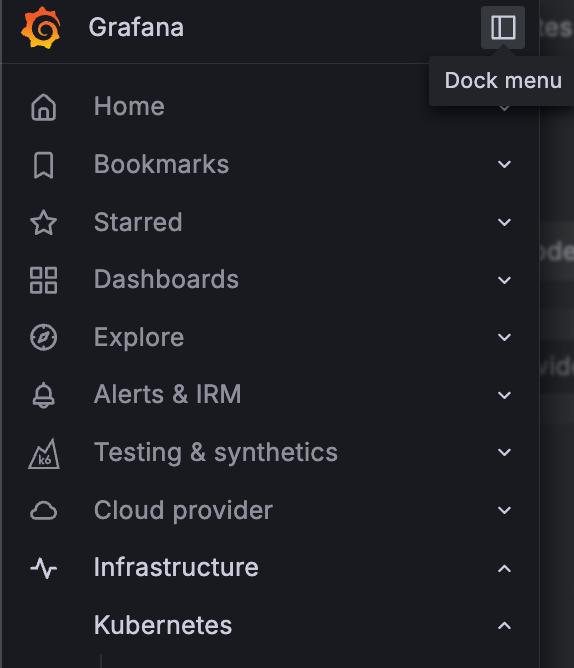
Dock the main menu
To keep the main navigation open:
- Click the Grafana logo menu icon.
- Click the dock menu icon to keep the main menu open.
Filter, sort, and set the time range
Use filters and sorting, along with the time range selector, to target the data you want.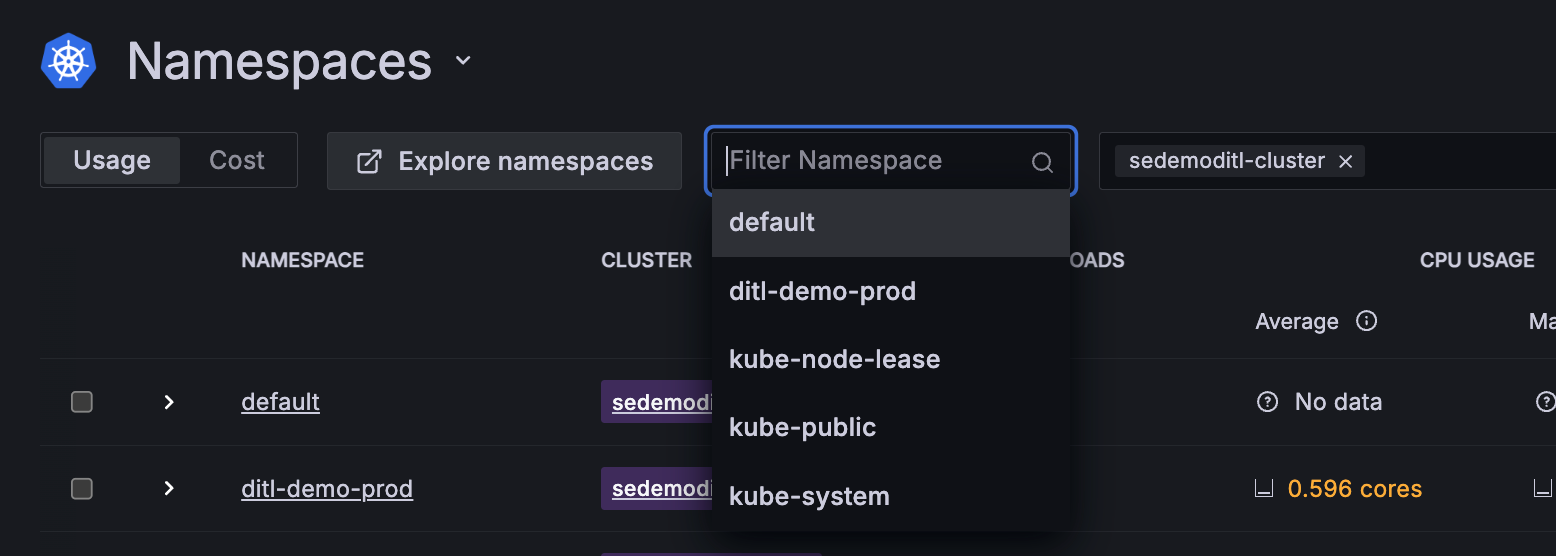
Jump to main lists
From the counts on the Kubernetes Overview home page, click All to see that component’s list of items in your Kubernetes fleet.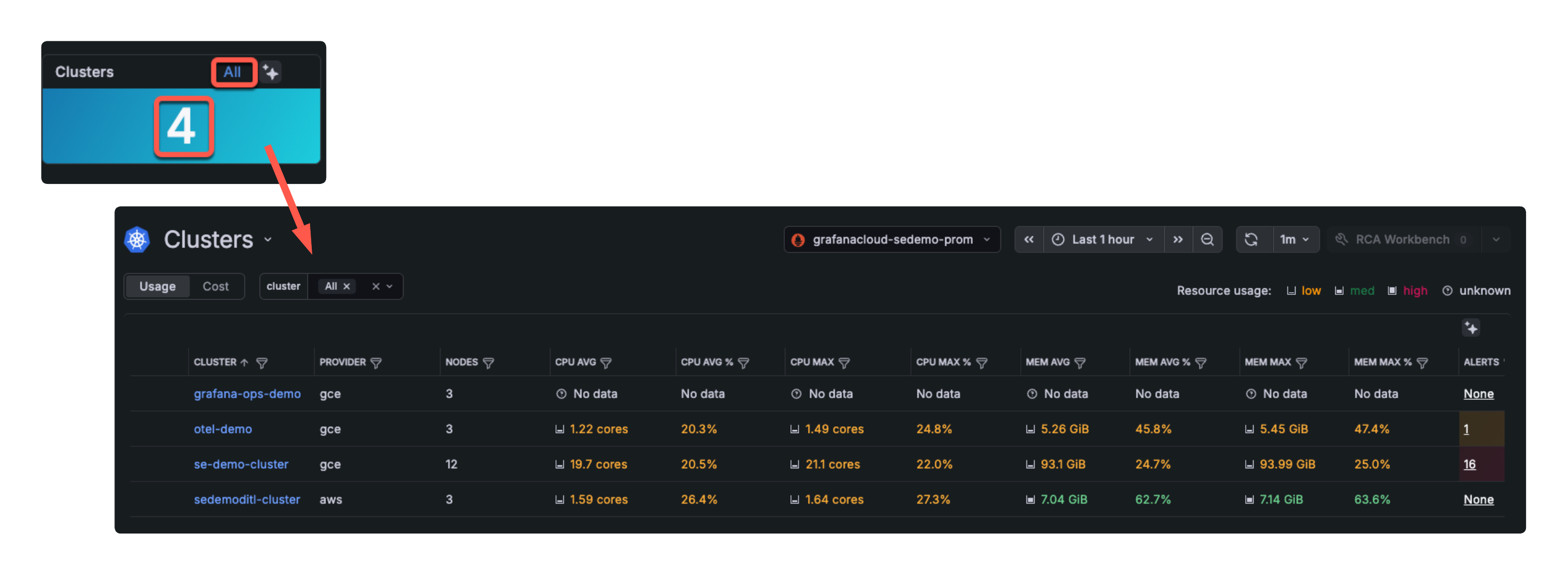
Control app refresh
You can control the automatic refresh interval of the GUI as well as disable the auto refresh.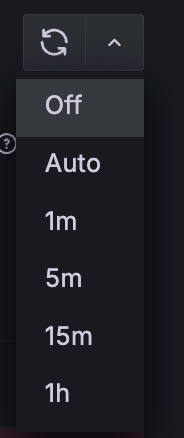
Use color cues
Throughout the views in Kubernetes Monitoring, you see color used as an additional means of indicating status or condition.
For example, sometimes text is a different color for Pod status: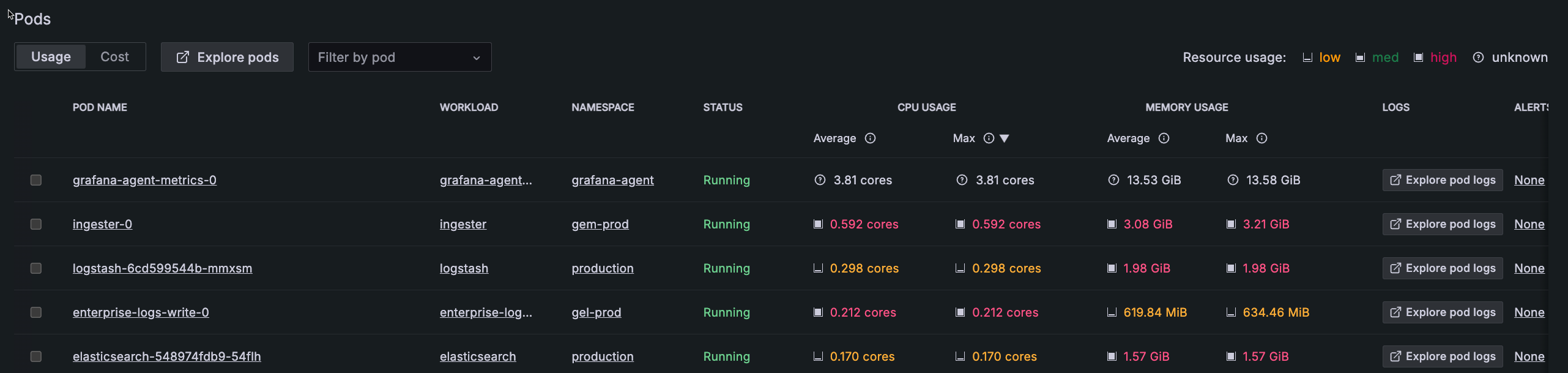
For more information on Pod status, refer to the Kubernetes documentation on Pod lifecycle.
The following table describes the color indicators for resource capacity and the state of resource usage:
Analyze your infrastructure further
After you’re comfortable moving around in Kubernetes Monitoring, determine what the next step should be.
Triage your fleet
Use the Kubernetes Overview home page to confirm fleet health and infrastructure conditions by:
- Reviewing potential issues to triage your infrastructure and then:
- Troubleshoot specific issues such as:
- CPU throttling
- Out-of-memory issues
- Scaling, deployment, and workload resource pressure with Pod count insights
- Application latency
- Use built-in tools to further explore troubleshooting
Optimize resource usage and efficiency
Right-size CPU and memory across your Clusters so workloads stay stable and you don’t pay for capacity you don’t use. Underprovisioned workloads lag or fail under load, and overprovisioned ones tie up capacity the scheduler can’t reuse. You can use built-in dashboards to:
- Optimize resource usage and efficiency by going to the Efficiency tab on the home page
- Monitor resource usage throughout Kubernetes Monitoring
- Analyze trends and view historical data to understand past and potential future patterns
- Learn best practices for Assigning CPU requests and limits
- Monitor your fleet’s energy usage
Manage costs
View and manage cost per resource and infrastructure type, historical and projected costs, and savings opportunities on the Cost views. Cost data comes from an OpenCost integration that estimates per-Node costs from public pricing and allocates them to your Clusters, namespaces, workloads, Pods, and containers.
View jobs and non-standard workloads
Get visibility into:
- Short-lived
JobandCronJobruns - Non-standard workloads that schedule Pods through mechanisms other than the built-in controllers, such as Argo Rollouts, Strimzi Pod sets, and unmanaged or bare Pods.


