Grafana Cloud
Observe and act
Alert and measure reliability
Alerting
Monitor alerts
Declare incidents from firing alerts
Declare incidents from firing alerts
Declare an incident from a firing alert to streamline your alert to incident workflow.
Before you begin
- Ensure you have Grafana IRM installed.
- You must have a firing alert.
Procedure
To declare an incident from a firing alert, complete the following steps.
Navigate to Alerts & IRM -> Alerting -> Alert rules.
From the Alert rules page, click the Firing filter to display firing alerts. Find the firing alert that you want to declare an incident for.
Click More -> Declare Incident.
Alternatively, you can declare an incident from the Alert details page.
The Declare Incident pop-up opens in the Grafana Incident application.
In the Declare Incident pop-up, enter the What’s going on? field.
This field is pre-filled with the name of the alert rule, but you can edit it as required.
The alert rule is also linked to the incident.
Select a severity.
Add labels, as required.
Click Additional details to select the incident’s status and start time.
Click Automated actions to enable automated actions configured by admins.
Click Declare Incident.
Next steps
View and manage the incident in the Grafana IRM application.
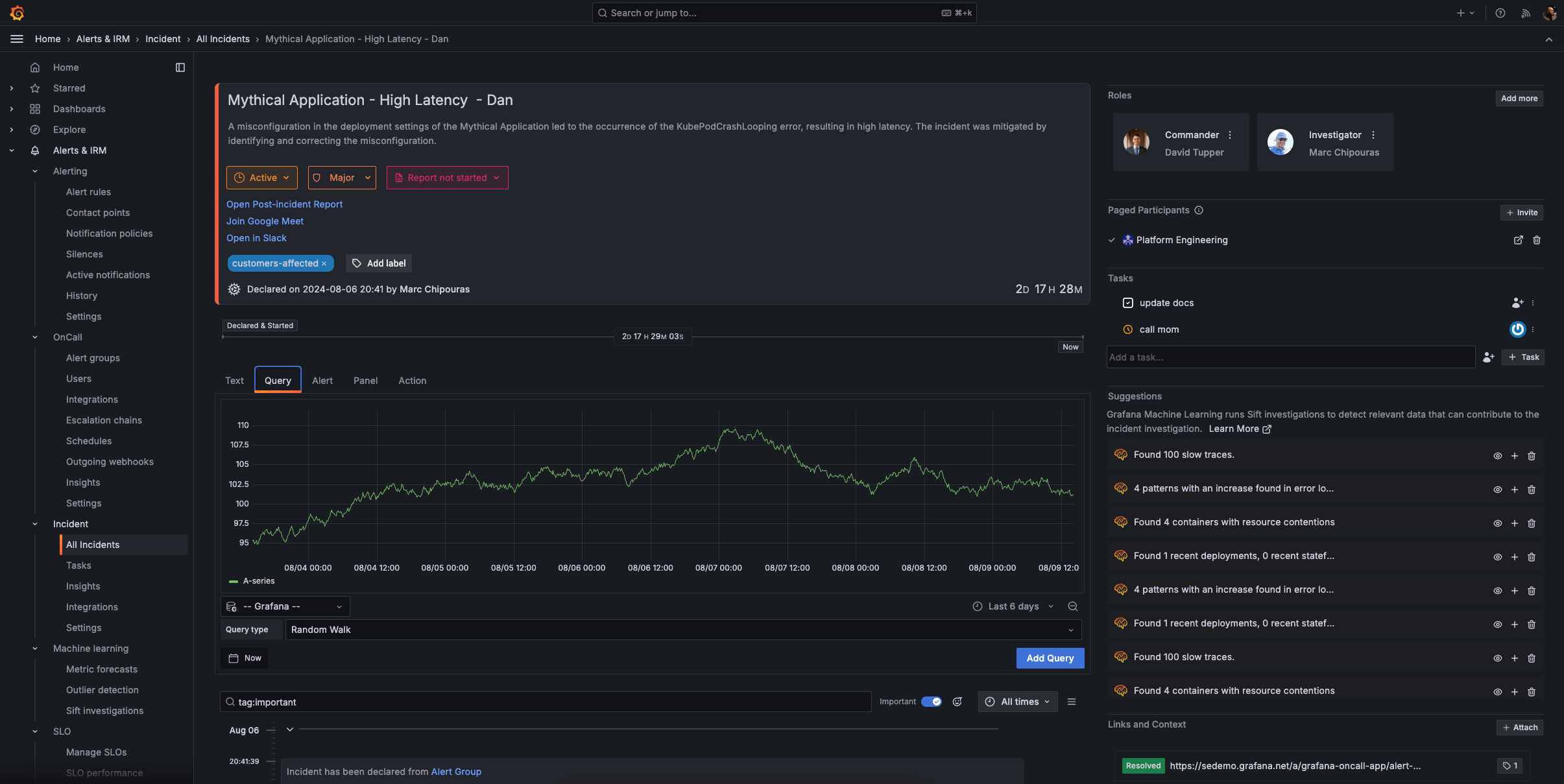
For more information, refer to the Grafana IRM documentation.
Was this page helpful?
Related resources from Grafana Labs