Options
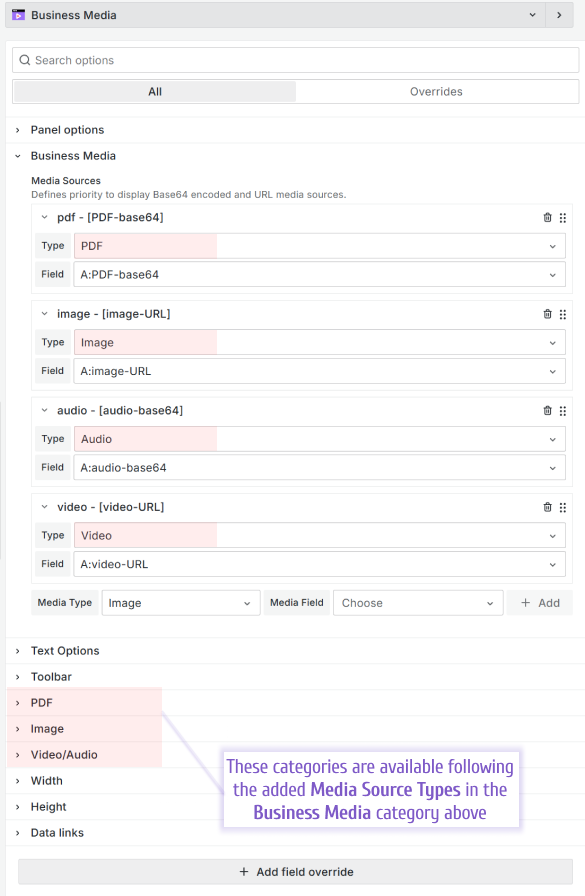
This section describes all plugin options. The Business Media panel displays multiple types of media files at once. The three option categories, PDF, Image, Video/Audio, appear based on the Media Source Types you add in the Business Media category.
Business Media
The Business Media category has the following parameters:
- Type to specify one of the four supported types. Select between Audio, Image, PDF, or Video.
- Field to specify the data frame field name containing a base64 file to display on the panel.
You can add as many files as you need by using the +Add button.
Text Options
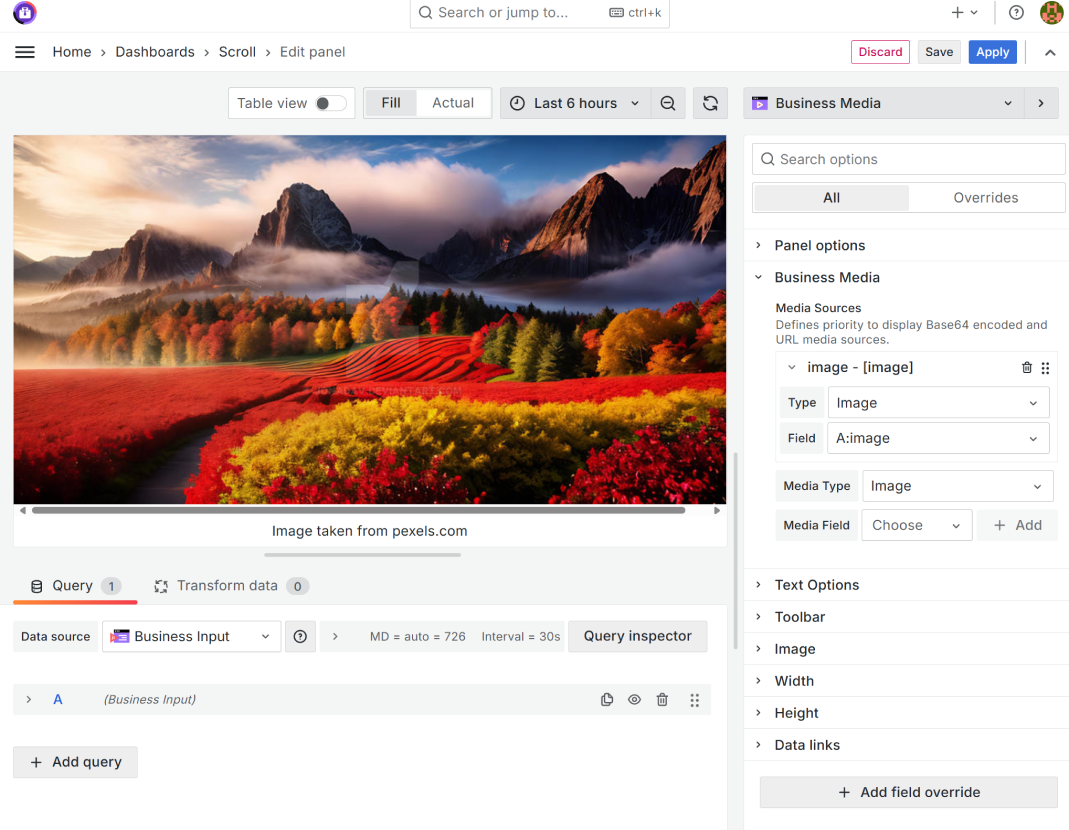
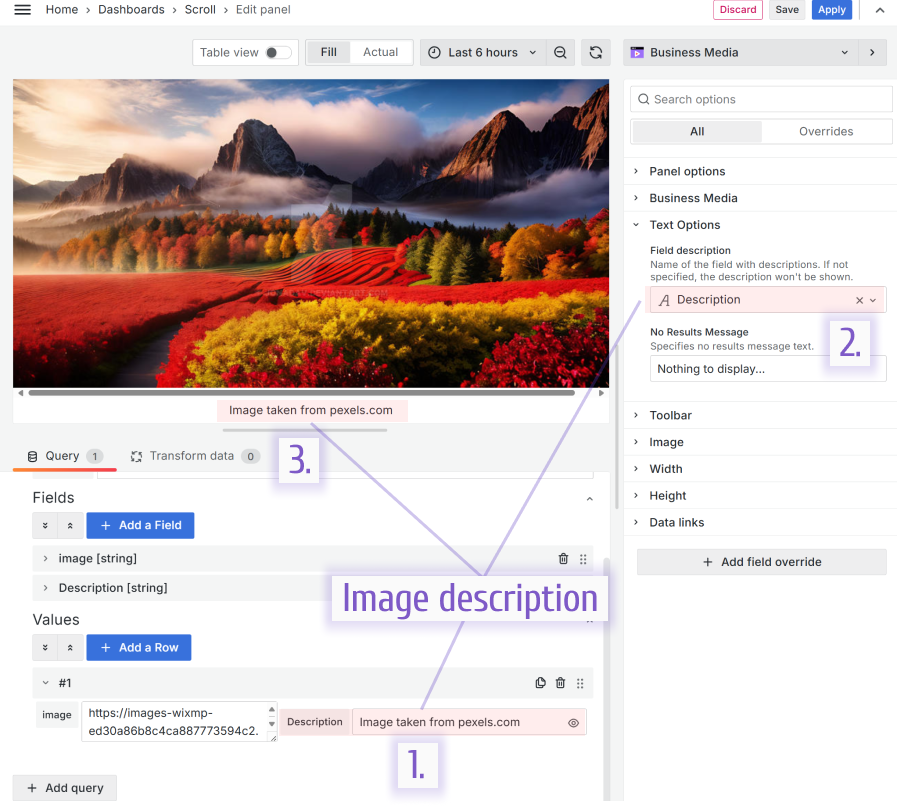
The Text Options category has the following parameters:
- Field description is a description displayed under the image specified as a data frame column name.
Note
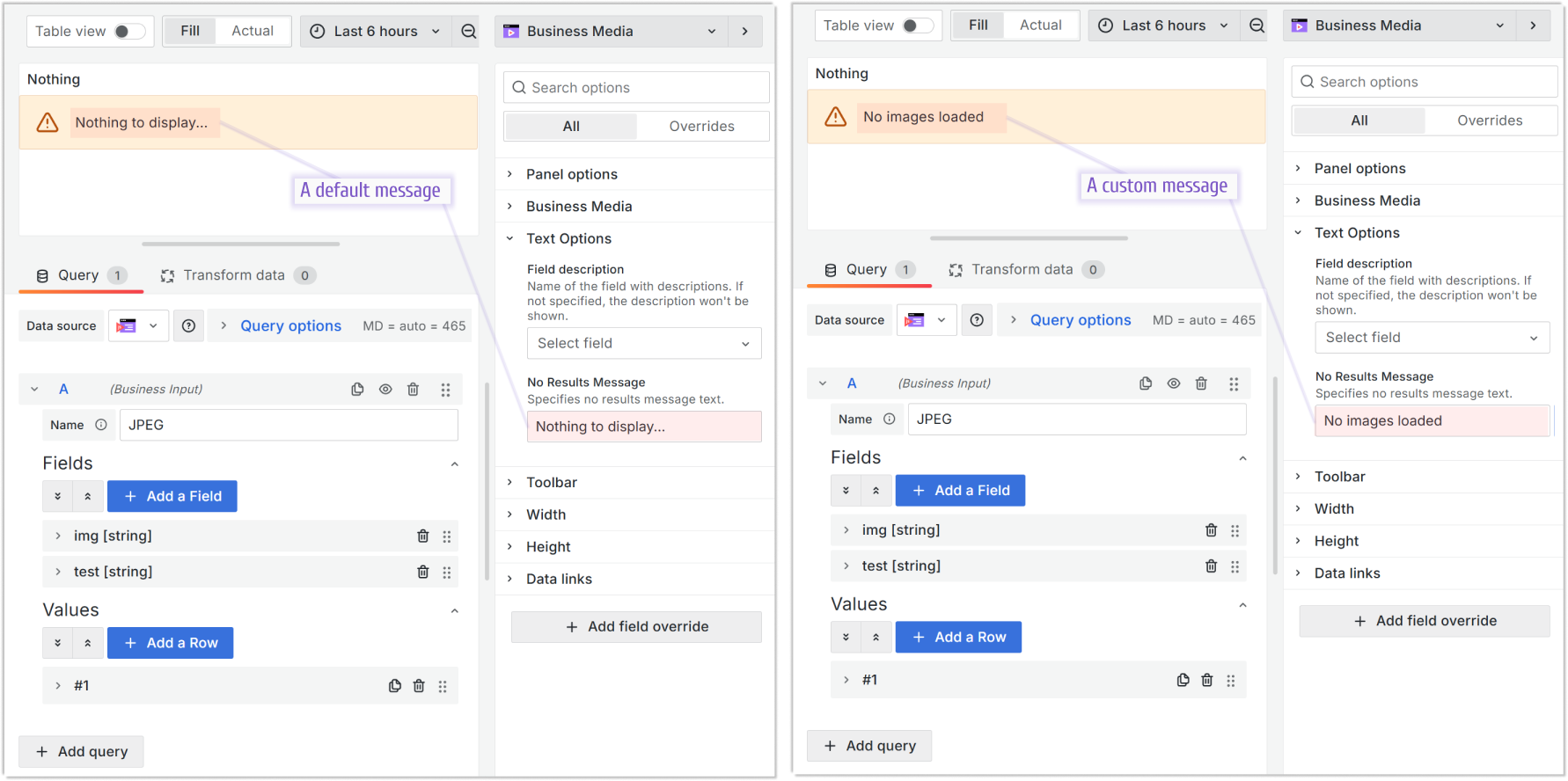
Starting with release 5.0.0, you can customize the message shown for image loading problems or no data found errors.
- No Results Message customizable message to notify users of loading problems or no data found errors.
Toolbar
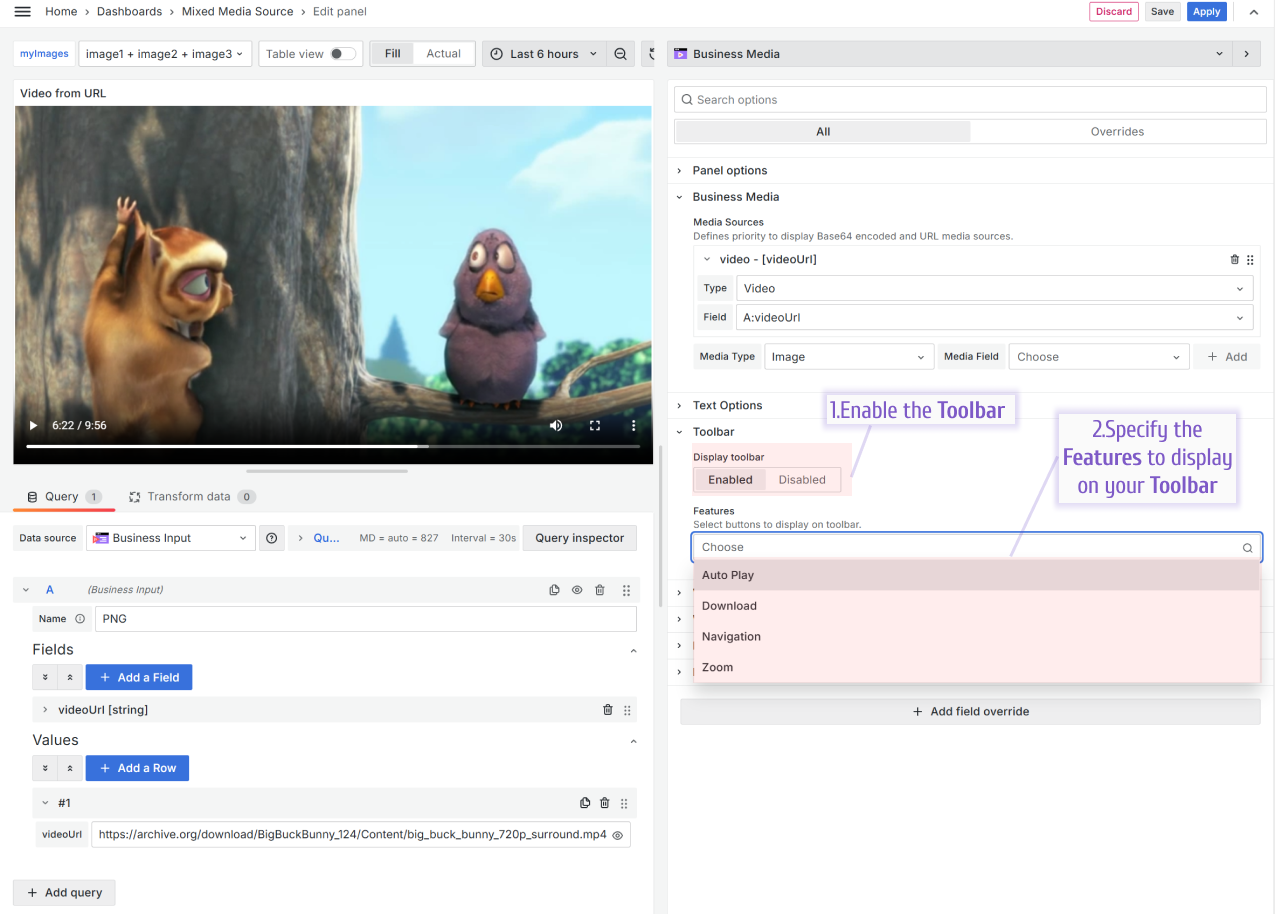
The Business Media panel includes a customizable toolbar. Enable Display toolbar and select the Features you want.
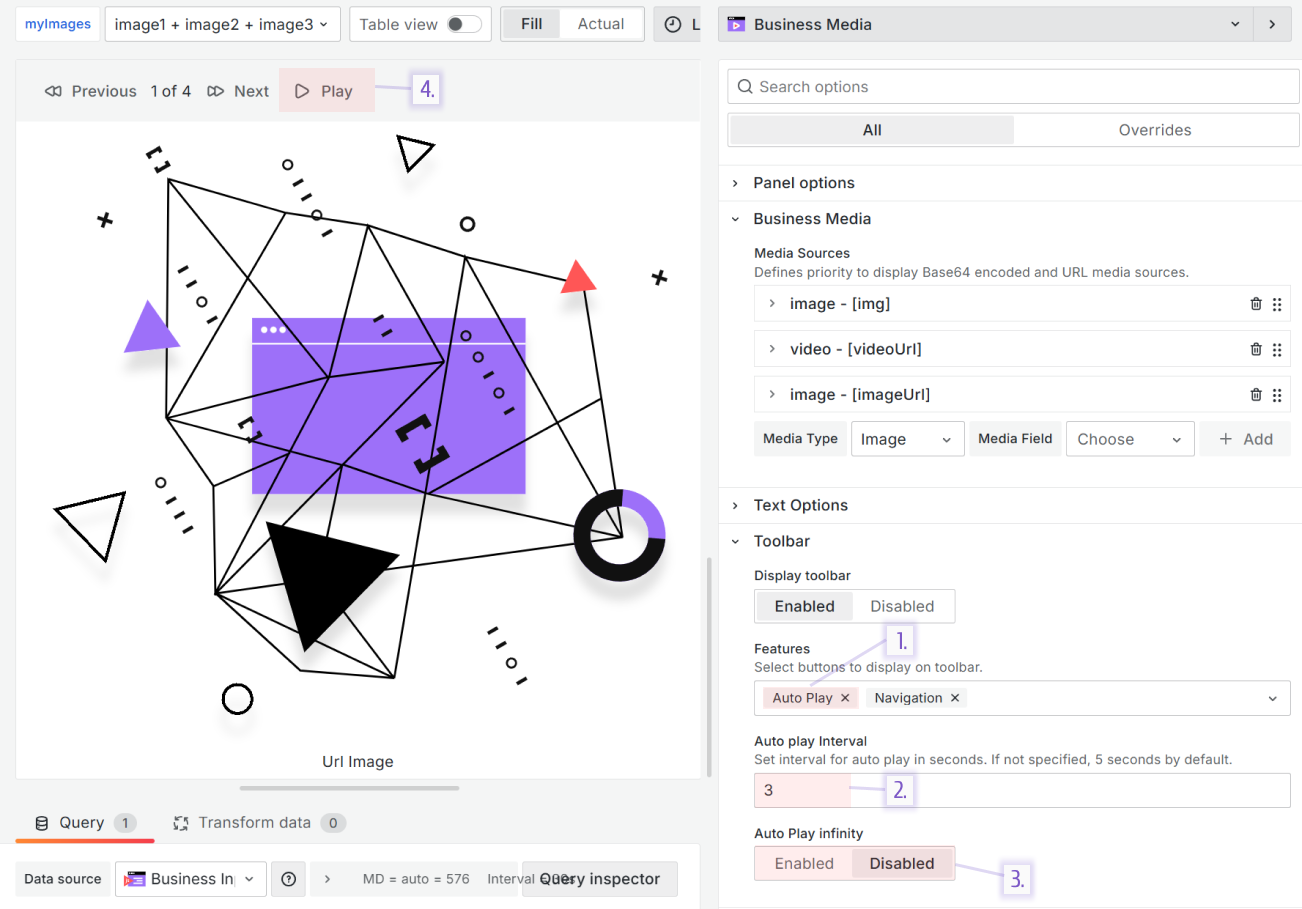
- Auto play: When you add multiple media files, clicking the Play button switches images from the first to the last using the Auto play interval. If Auto Play infinity is Enabled, switching starts again from the beginning automatically.
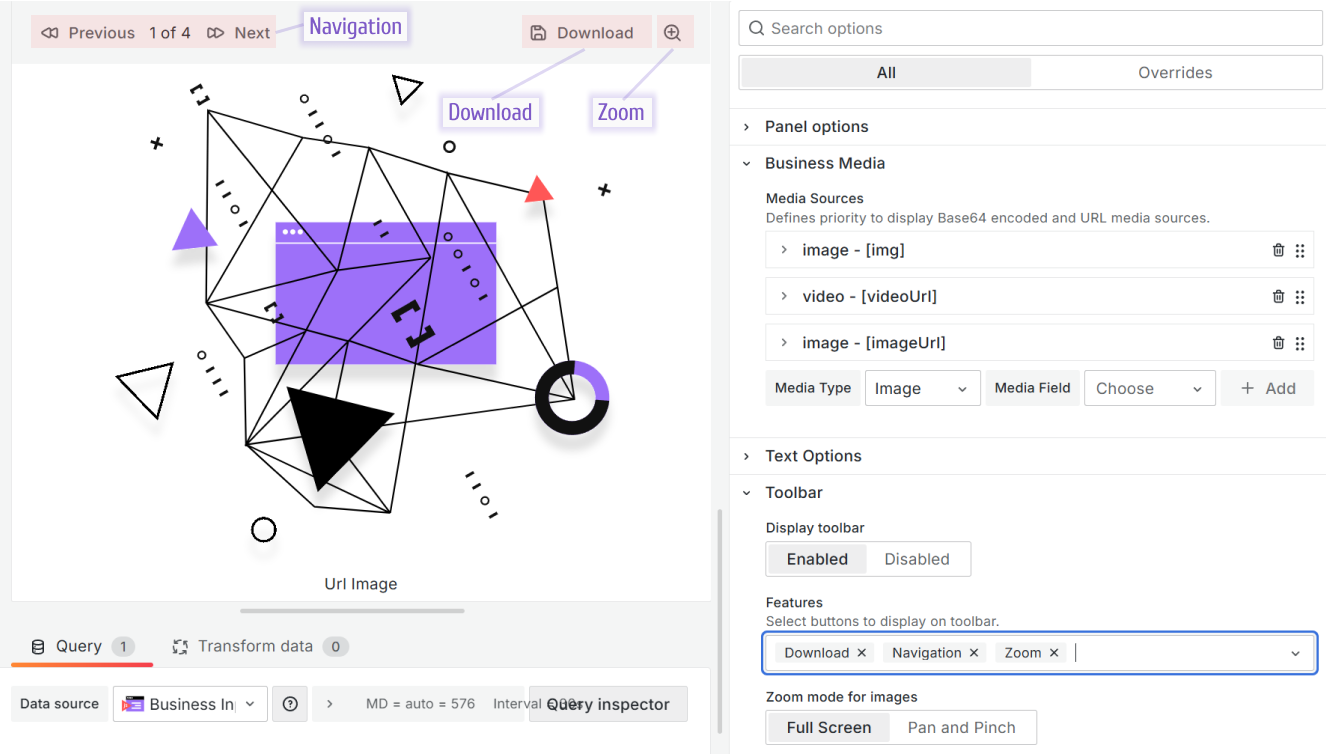
- Download: For Image type only. Adds a button to download the selected image.
- Navigation: Adds buttons to page media files back and forward.
- Zoom: For Image type only. This option has two sub-options:
- Full Screen. This enables one button that allows your image to be opened in full-screen mode.
- Pan and Pinch. This enables three buttons to zoom in and out of your image.
URL
Note
Starting from version 6.1.0, the URL category became obsolete since Grafana added the Data links category, which is fully supported by the Business Media panel.
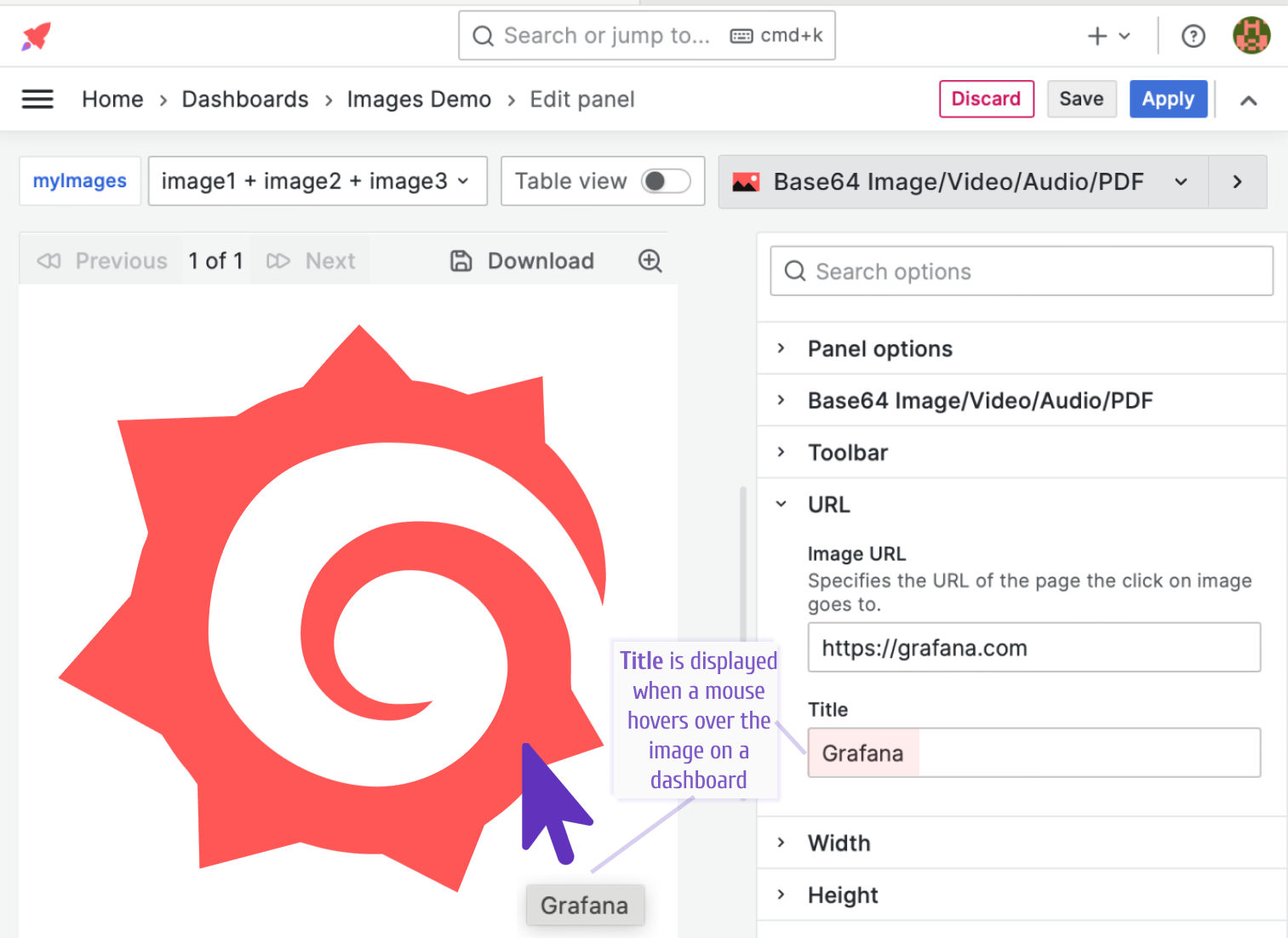
In the URL category, you can specify two parameters:
- Image URL. This address will be opened after a user clicks on the image.
- Title. This text will pop up when a user hovers a mouse over the image.
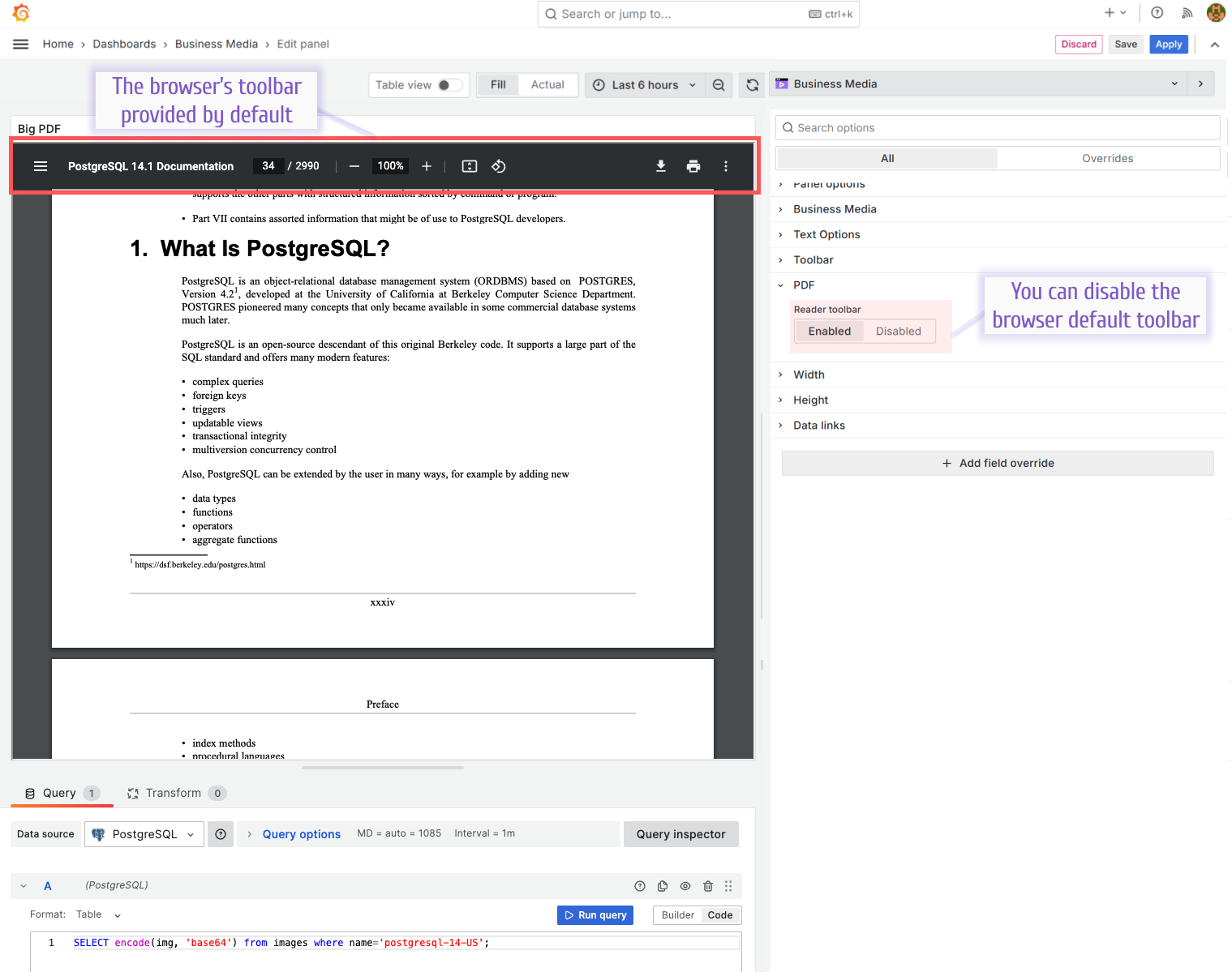
Most browsers have a PDF toolbar by default. You can disable that default if needed.
Image
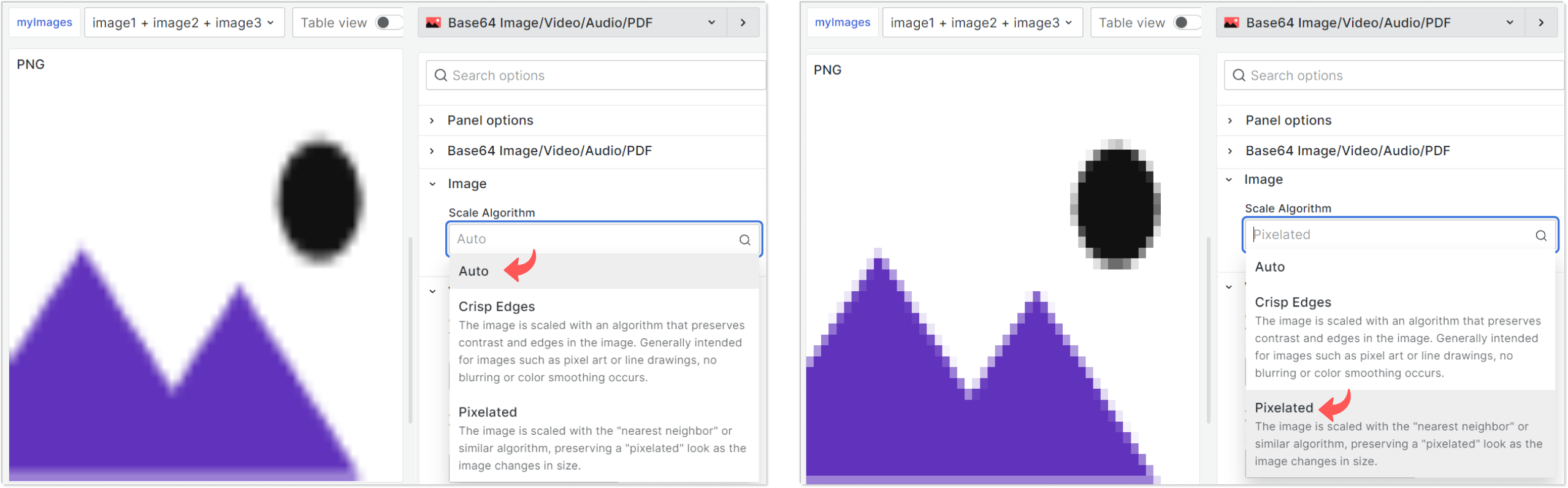
In the Image category there is one drop-down parameter Scale Algorithm to specify how scaling of the image should be done. There are three options to choose from:
- Auto. A browser chooses the best available algorithm.
- Crisp Edges. The image is scaled with an algorithm that preserves contrast and edges in the image. Generally intended for images such as pixel art or line drawings, no blurring or color smoothing occurs.
- Pixelated. The image is scaled with the “nearest neighbor” or similar algorithm, preserving a “pixelated” look as the image changes in size.
Note
The Crisp Edges option is not supported in all browsers. Learn more in the Mozilla CSS documentation.
Video/Audio
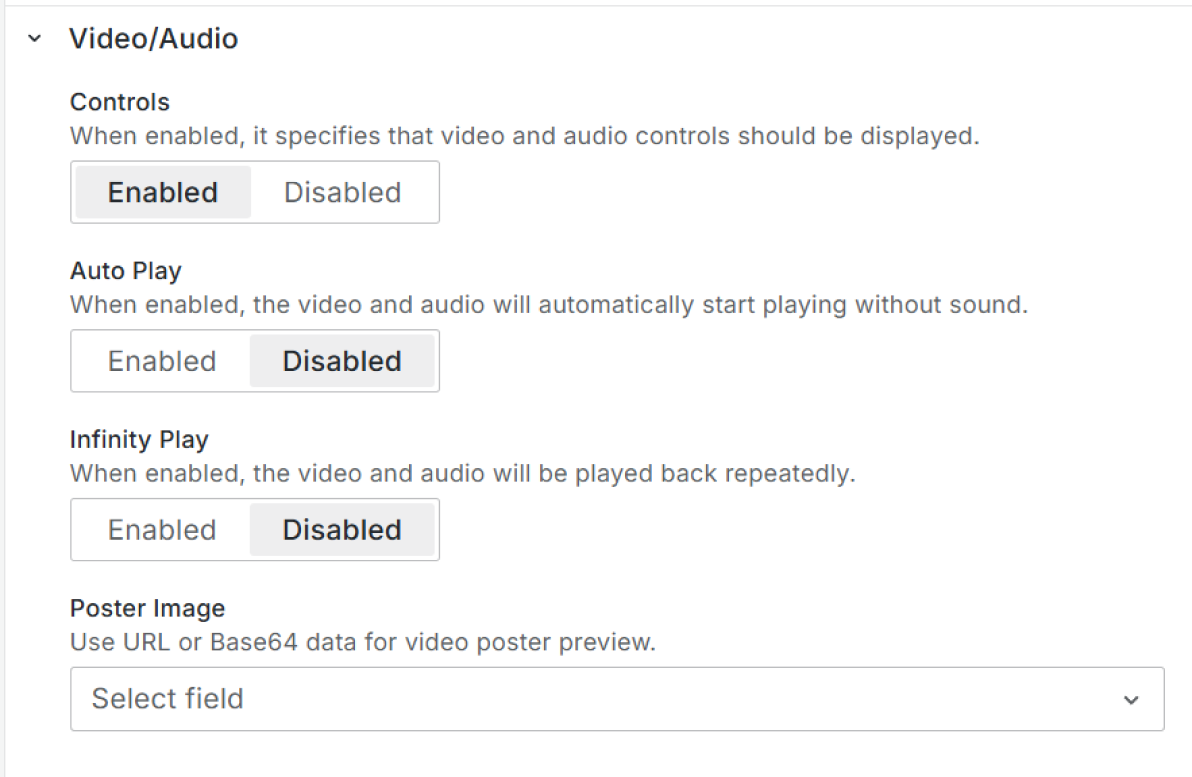
In the Video/Audio category, there are specific to these formats parameters:
- Controls. Enabled instructs the panel to display the video and audio controls.
- Auto Play. When Enabled, the video and audio automatically start playing without sound.
- Infinity Play. With Enabled, the file plays in an endless loop.
- Poster Image. You can specify a poster image (thumbnail) file for your video files. A poster image is an image that is shown before the user clicks on the play button (unless the Auto play is enabled). The image can be in the base64 format or a link to the external web resource.
Width and Height
The Width and Height categories allow control of the image size on the dashboard.
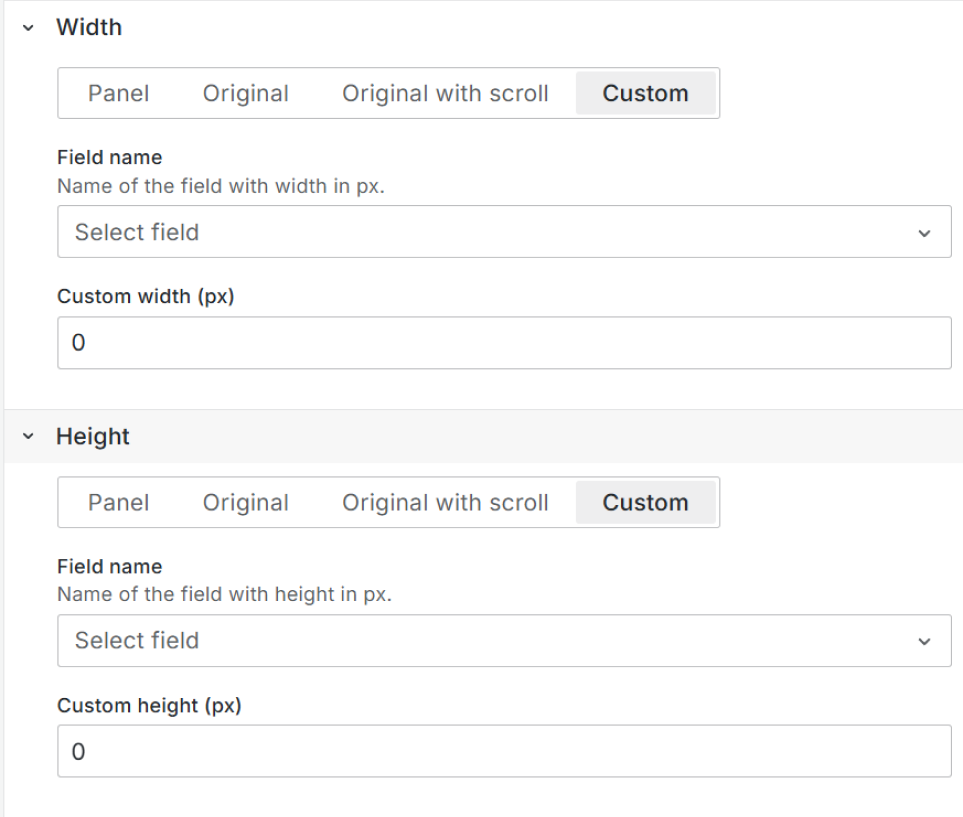
- Panel. The width or height will fit the current panel size.
- Original. The width or height will be taken from the original file.
- Custom. Here you can either take the sizing from the connected data frame field or give a specific number in pixels.
- Original with scroll. You can allow scrolling only horizontally, vertically, or simultaneously in both directions.
Data links
Note
The Data links feature is supported starting from the Business Media panel version 6.1.0
Following Grafana 11 new features, previously existing image links were removed (the URL category) and allowed using a new Data links feature instead.
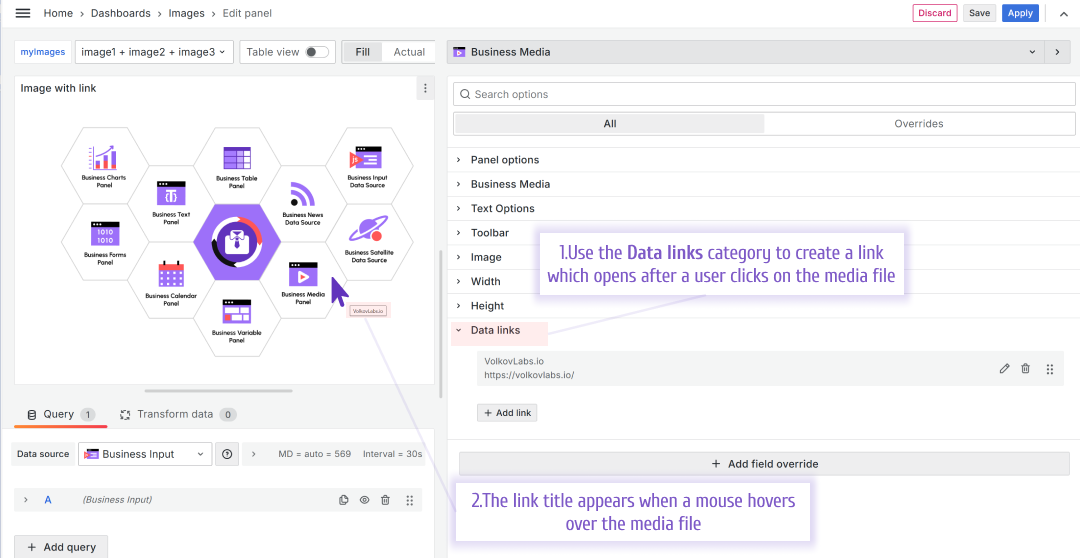
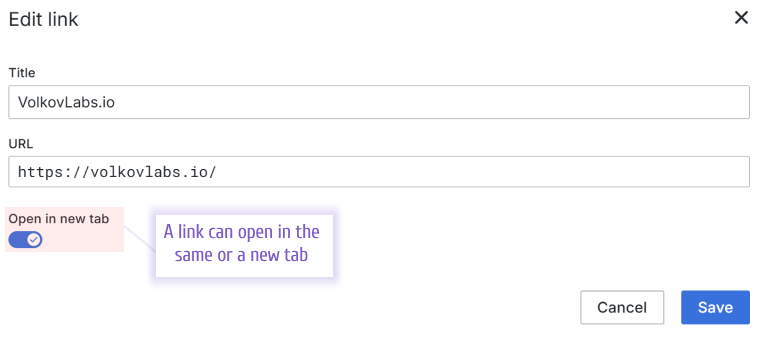
The links can open in the same tab or a new tab.