Respond to alerts
Respond to and troubleshoot alerts about your infrastructure and the applications running within it without leaving the context of Grafana Kubernetes Monitoring.
Get a quick overview of alerts
The Alerts tab on the Kubernetes Overview page gives you a quick sense of whether anything needs attention. To open it, go to the Kubernetes Overview page and click the Alerts tab.
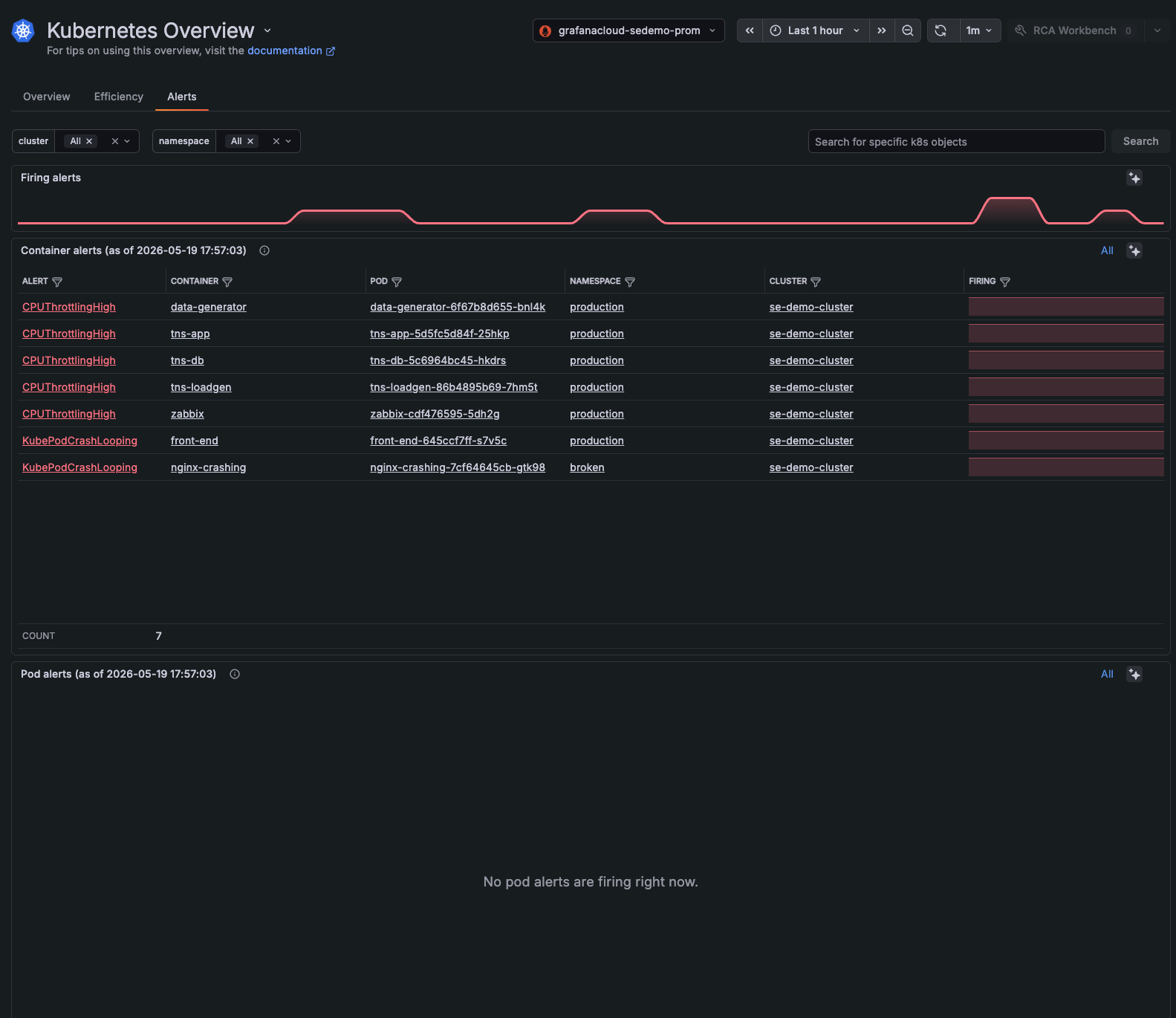
Firing alerts panel
The Firing alerts panel is a health-at-a-glance view. It shows whether your alerting state is getting better, worse, or staying the same over the selected time range. Use it to decide where to look deeper in the lists for container and Pod alerts.

Look for:
- The baseline. If the line never touches zero, alerts are always firing. That’s either chronic noise to clean up or a real persistent problem to own.
- Sudden step-ups. A sharp increase means multiple alerts fired at once, often pointing to a deployment, Node event, or cascading failure.
- Duration. A brief spike that resolves quickly is self-healing. A plateau that stays elevated means something needs manual intervention.
- Trend direction. If the right side of the chart is higher than the left, the environment is degrading over the window, not recovering.
Container and Pod alerts lists
These lists show firing container alerts and Pod alerts with their alert name, container, Pod, namespace, and Cluster. Instead of being controlled by the time range selector, these lists refresh automatically every minute, so they stay current without any action from you. The timestamp on the tab shows when the data was last fetched. To get an immediate update, click the refresh button (↺) in the time range toolbar.
The FIRING column shows:
- Each row is an alert that’s currently firing.
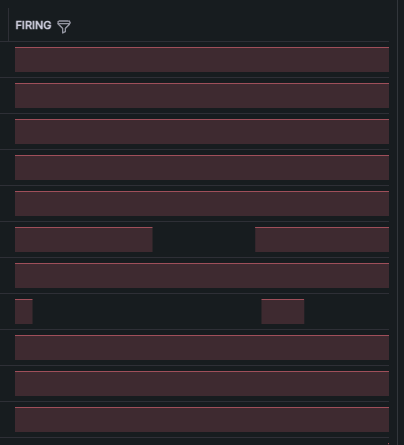
- The bar in each row is a state timeline of the last hour based on the time range chosen in the time range selector:
- A solid bar means the alert has been firing the whole time.
- A gap means the alert briefly resolved before firing again.
- A short bar on the right means the alert started firing recently.
To narrow results further:
- Use the cluster and namespace filters at the top of the tab.
- Use the Search for specific k8s objects field to find alerts tied to a specific object.
In either list, click the alert name to jump to the alert rule, or the container, Pod, namespace, or Cluster to jump to the corresponding detail page.
The lists on this tab have duplicate alerts removed. You see one row per affected container or Pod even if several alerts are firing against the same object. For the full per-instance view, go to the Alerts page.
Investigate alerts in detail
The Alerts page is built for deeper triage. It breaks down firing alerts across multiple dimensions and lists every individual alert instance. To navigate to this page, click Alerts on the main menu
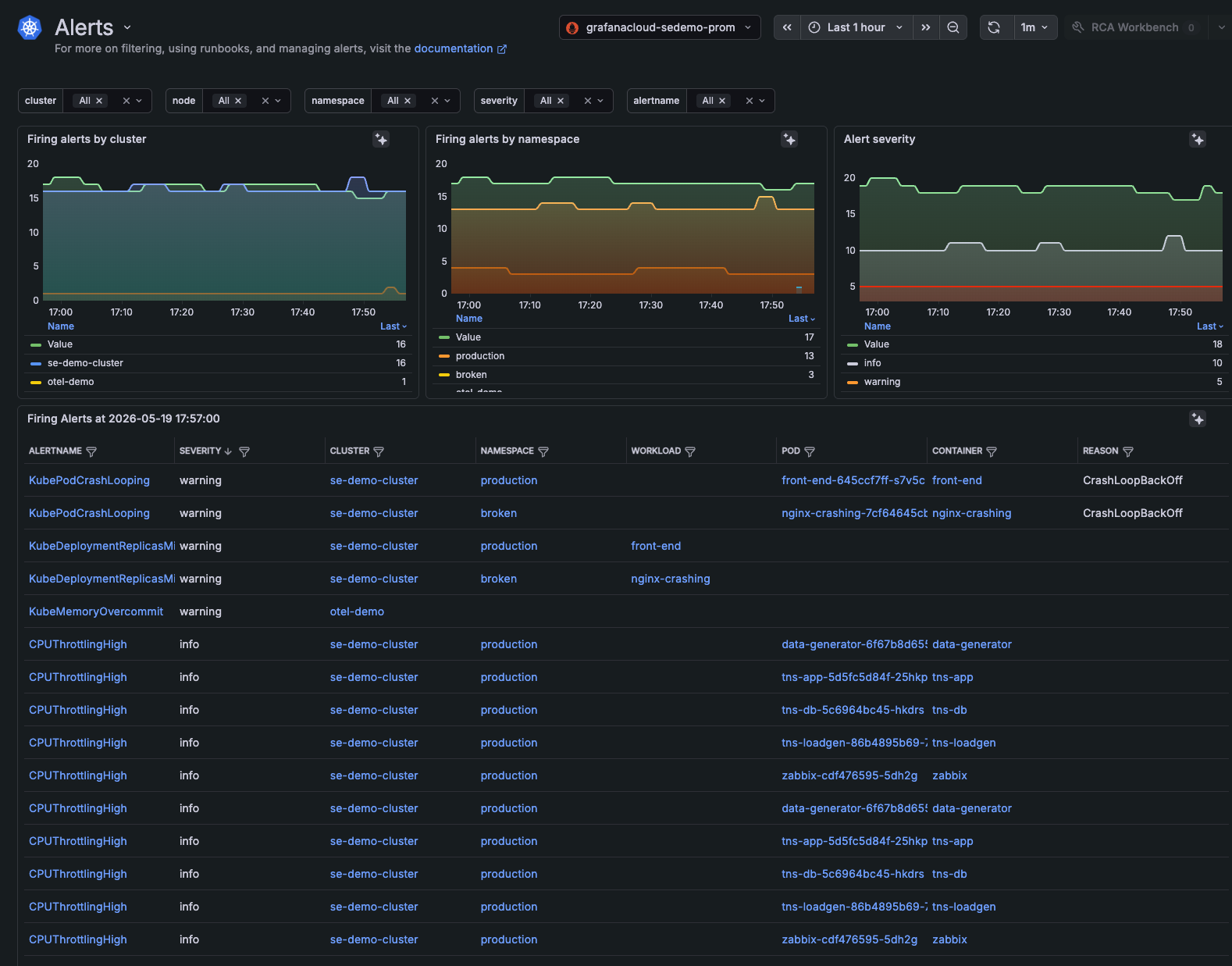
Firing alerts by cluster graph
This graph plots firing alert counts per Cluster over the selected time range. Use it to:
- Compare Clusters at a glance. A Cluster with many active alerts stands out against quieter ones without you opening each Cluster separately.
- Spot alert storms. A sudden spike signals a new wave of issues before you’ve read individual rows.
- Confirm a fix is working. While you’re remediating, a falling line tells you the fix is taking effect.
Watch the shape of the line, not the exact count. Patterns to look for:
- Sudden spikes. A sharp jump means a new wave of alerts fired at once, often signaling incident onset.
- Gradual climbs. A slow rise points to a condition worsening over time, not a single event.
- Drops followed by recovery. A dip that bounces back means something auto-resolved without the root cause being fixed.
- Flat lines at a non-zero value. Alerts have been firing continuously without resolution.
- One Cluster diverging from the rest. If a line separates from the others, the problem is Cluster-specific, not platform-wide.
Firing alerts by namespace panel
The Firing alerts by namespace panel plots firing alert counts per namespace over the selected time range. Use it to identify which namespace owns a problem and whether it’s getting better or worse.
Patterns to look for:
- Lines moving together. If all namespaces rise and fall at the same time, the cause is likely infrastructure-wide rather than namespace-specific.
- One line diverging. If a single namespace climbs while others stay flat, the issue is isolated to that namespace.
- Steps vs. curves. Sudden step changes mean alerts fired or resolved in a batch. Gradual curves suggest a condition slowly degrading.
- A namespace holding steady at a high count. Persistent flat-high lines mean unresolved issues that aren’t being addressed.
- A namespace dropping to zero. This can mean a real fix, but it can also mean the namespace and its workloads went offline. Verify before assuming success.
- Lines converging or crossing. A quieter namespace suddenly matching a noisier one signals a problem spreading.
Alerts severity panel
The Alerts severity panel breaks down firing alerts by severity level over the selected time range. Use it to see whether the severity mix is shifting toward more serious alerts or staying stable.
Patterns to look for:
- Warning line rising. Warnings often precede critical issues, so an upward trend is an early signal to act before things escalate.
- A large gap between the total and the warning or info lines. Many alerts aren’t categorized at lower severities, which can indicate missing alert rules or misconfigured severity labels.
- Warning and info moving in the same direction. A broad environmental issue is likely affecting multiple alert types at once.
- Warning rising while info stays flat. Conditions are actively worsening, not just noisy.
- A severity line spiking then dropping sharply. This can mean a brief incident resolved, or that alerts were silenced rather than fixed.
- Warning holding flat at a non-zero value. Persistent warnings are unresolved and haven’t been escalated or addressed.
Firing Alerts list
The Firing Alerts list shows every individual alert instance with workload, severity, and reason. Use it to identify which specific resources need attention after the trend panels have shown you when and how the situation changed.
Patterns to look for:
- The same alert name repeating across many rows. A systemic issue is affecting multiple containers or Pods, not a one-off problem.
- Severity dominated by warning or higher. A list weighted toward warning or critical is more urgent than one full of info-level alerts.
- The REASON column. Values like
CrashLoopBackOffpoint to a specific failure mode and narrow down where to investigate first. - Alerts concentrated in one namespace. If most rows share the same namespace, the problem is likely scoped there.
- Alerts with no workload or Pod listed. Missing context in those columns can mean the affected resource has already been terminated.
- A high total row count. The pagination total gives a quick sense of scale. If it’s high, check the trend panels to see whether the count is still growing.
- Mixed alert names on the same Pod. A single Pod appearing under multiple alert types suggests it’s under broader stress, not just triggering one condition.
Each row represents one firing alert against one Pod or container. If the same alert is firing against multiple resources at once, each one gets its own row. The Overview tab on the Kubernetes Overview page groups those into a single row per affected Pod or container, so this list typically shows more rows than the Overview tab for the same set of alerts.
Filter by cluster, node, namespace, severity, and alertname to narrow the view.
Use the runbooks
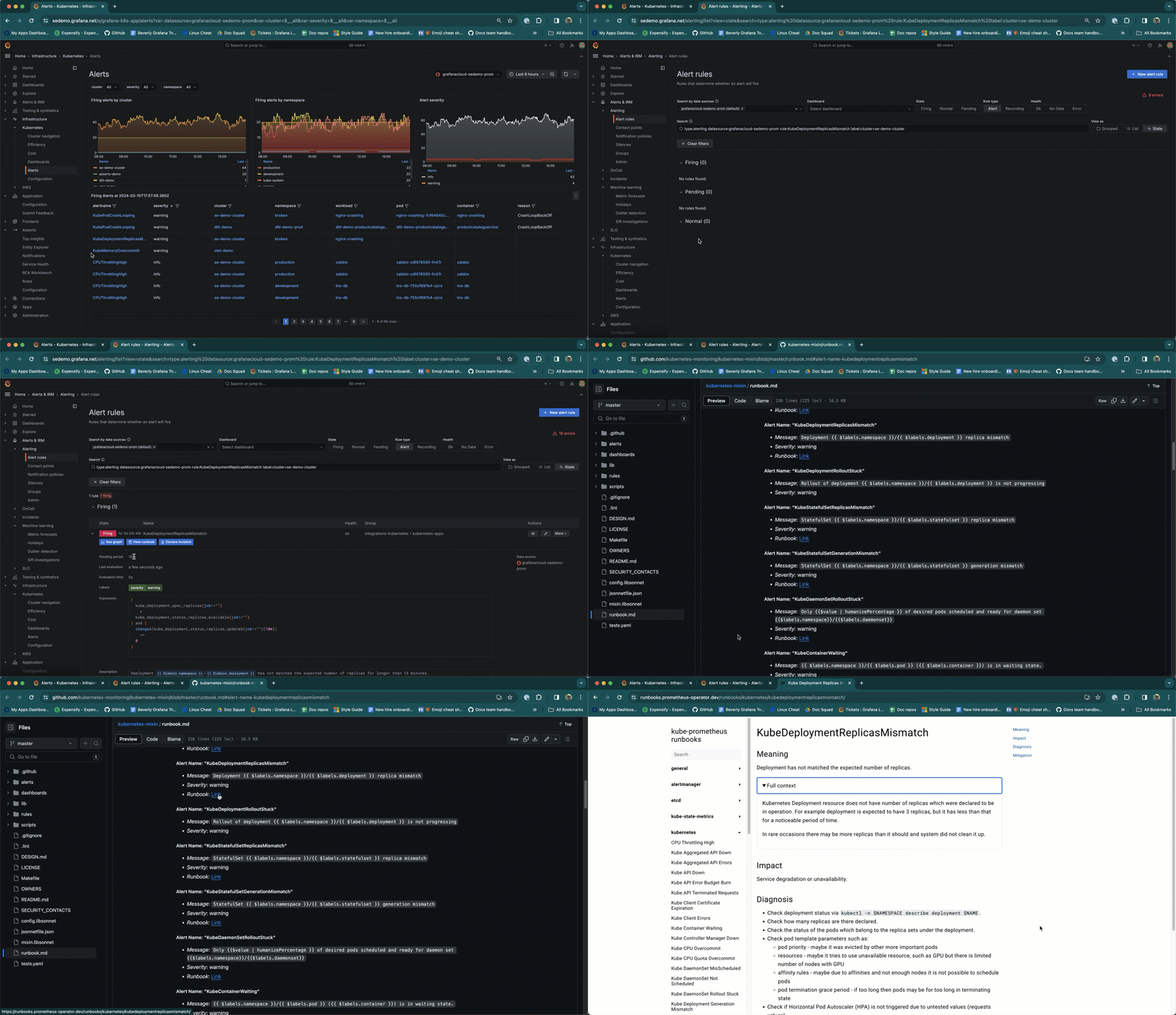
From either the Alerts tab on the Kubernetes Overview page or the Alerts page, click the alert name to navigate to the runbook for more information.
- Click the name of the alert to open the Alert rules page for that alert.
- Expand the Firing state.
- Click View runbook to open to the alert in the kubernetes-mixin.
- Click Link to view the specific runbook at kube-prometheus runbooks.

Navigating to the runbook
Manage alerts
Preconfigured alerting rules are available out of the box.
There are two ways to open an alert rule in a new browser tab:
- From either the Alerts tab on the Kubernetes Overview page or the Alerts page, click the name of the alert in the Container alerts or Pod alerts list.
- In a Cluster, namespace, Node, Pod, or container list, click the underlined number next to the list item.
For details on alert rules, refer to Configure alerting.
You can silence some default alerts temporarily as a useful strategy when you are investigating alerts.
Copy a preconfigured alert
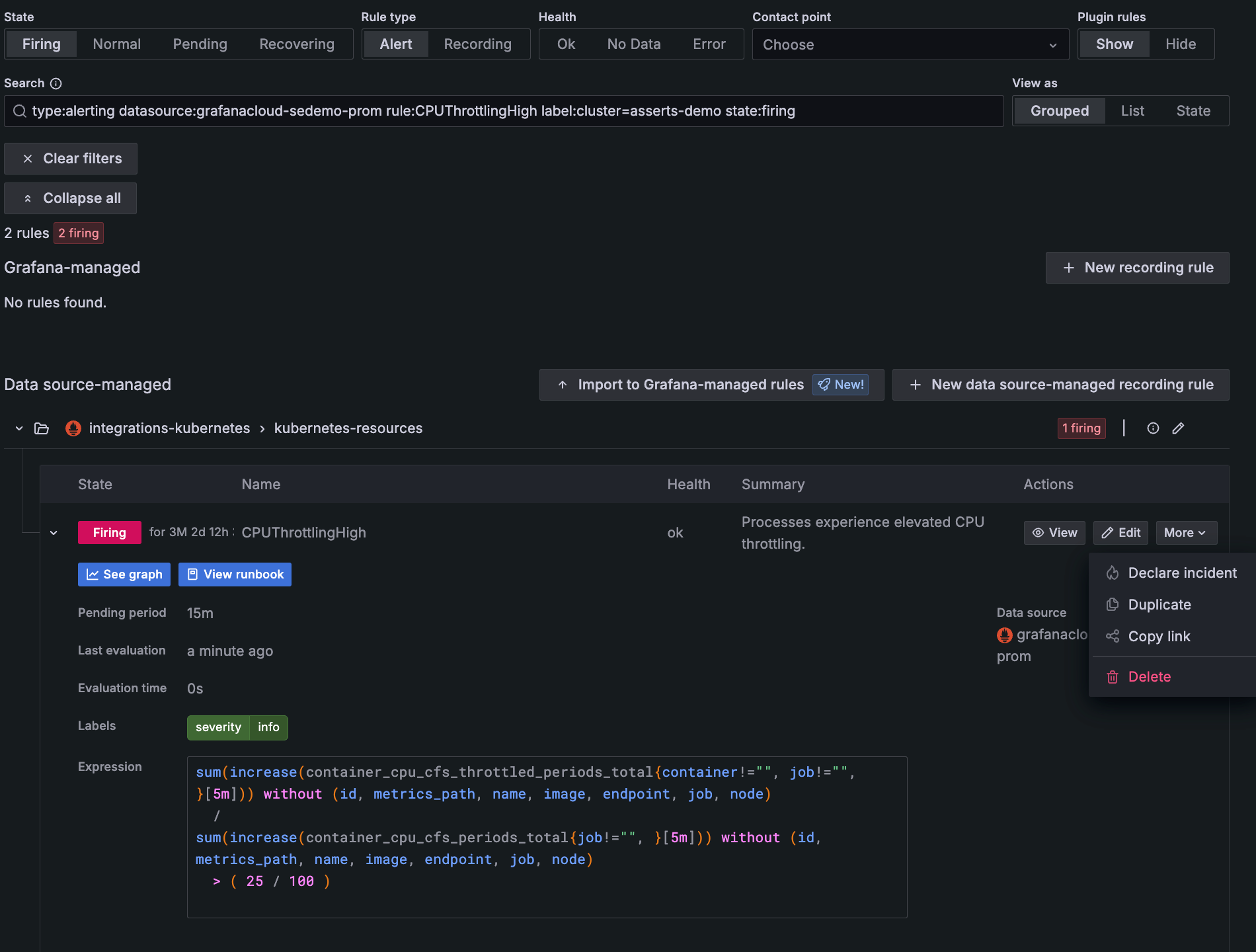
While you cannot alter the preconfigured alerts that are available in Kubernetes Monitoring, you can copy them and customize them. This can be helpful when troubleshooting. For example, you may want to know whether an existing state that’s causing an alert to fire is temporary or a longer term problem. To copy an alert:
- From either the Alerts tab on the Kubernetes Overview page or the Alerts page, click the name of the alert to open the alert rule in a new tab.
- On the Alert rules, expand the Firing section.
- Under Actions, click More, and select Duplicate.

Selecting Duplicate to copy an alert - On the New alert rule page, follow the steps to create and configure the rule.
- When you set the alert evaluation behavior, select a different namespace from the current one.
Create an alert
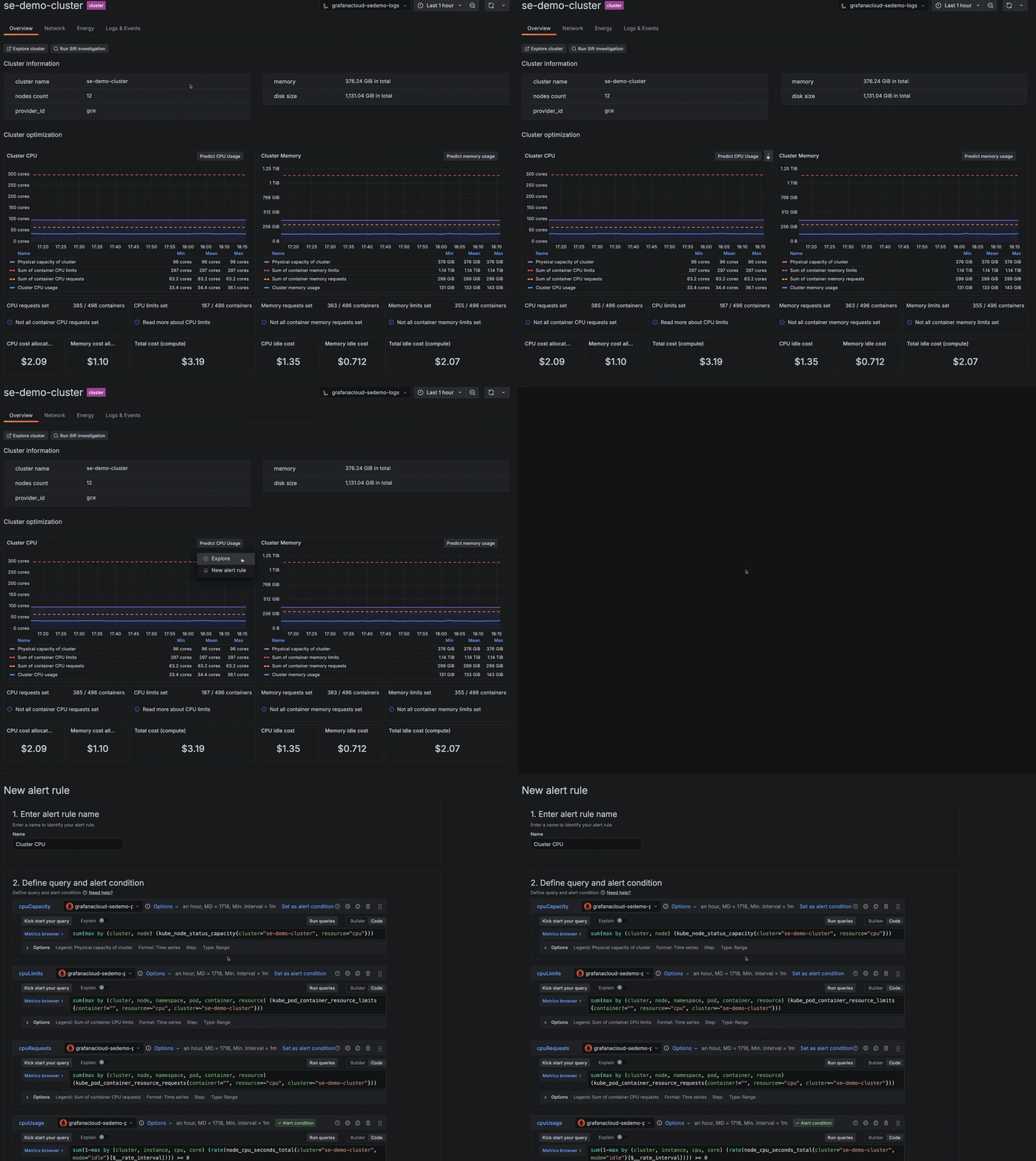
If you are an administrator of your Grafana Cloud stack, you can create a new alert from panels throughout Kubernetes Monitoring. To do so, complete the following steps:
- Navigate to any CPU or Memory panel and click the menu icon.
- Select New alert rule.
- On the New alert rule page, follow the steps to configure the rule.

Creating a new alert from a panel menu