
 Grafana Cloud
Testing and synthetics
Performance testing
Manage projects and users
Manage projects
Grafana Cloud
Testing and synthetics
Performance testing
Manage projects and users
Manage projectsManage projects
Use Projects to organize k6 tests in collections and grant access to these collections. Some ways to stay organized with Projects include the following:
- Per team. Each team is given their own project for them to do their work and collaborate.
- Per component. A project is created for each component or service you’re testing.
- Per brand. E-commerce customers may want to use projects per brand to stay organized.
- Per customer. When dealing with custom software, you can organize by customer to ensure each unique system is tested.
- Per major release. After your systems go through a major change, you can create a new project to organize the most recent data.
Note
To invite users to a project, refer to Manage user or team project access.
View your projects
Projects give you a brief overview of what’s happening in your work.
On the Performance home page, Recent activity and Starred tabs list projects you use often. To see all projects, go to Testing & synthetics > Performance > Projects.
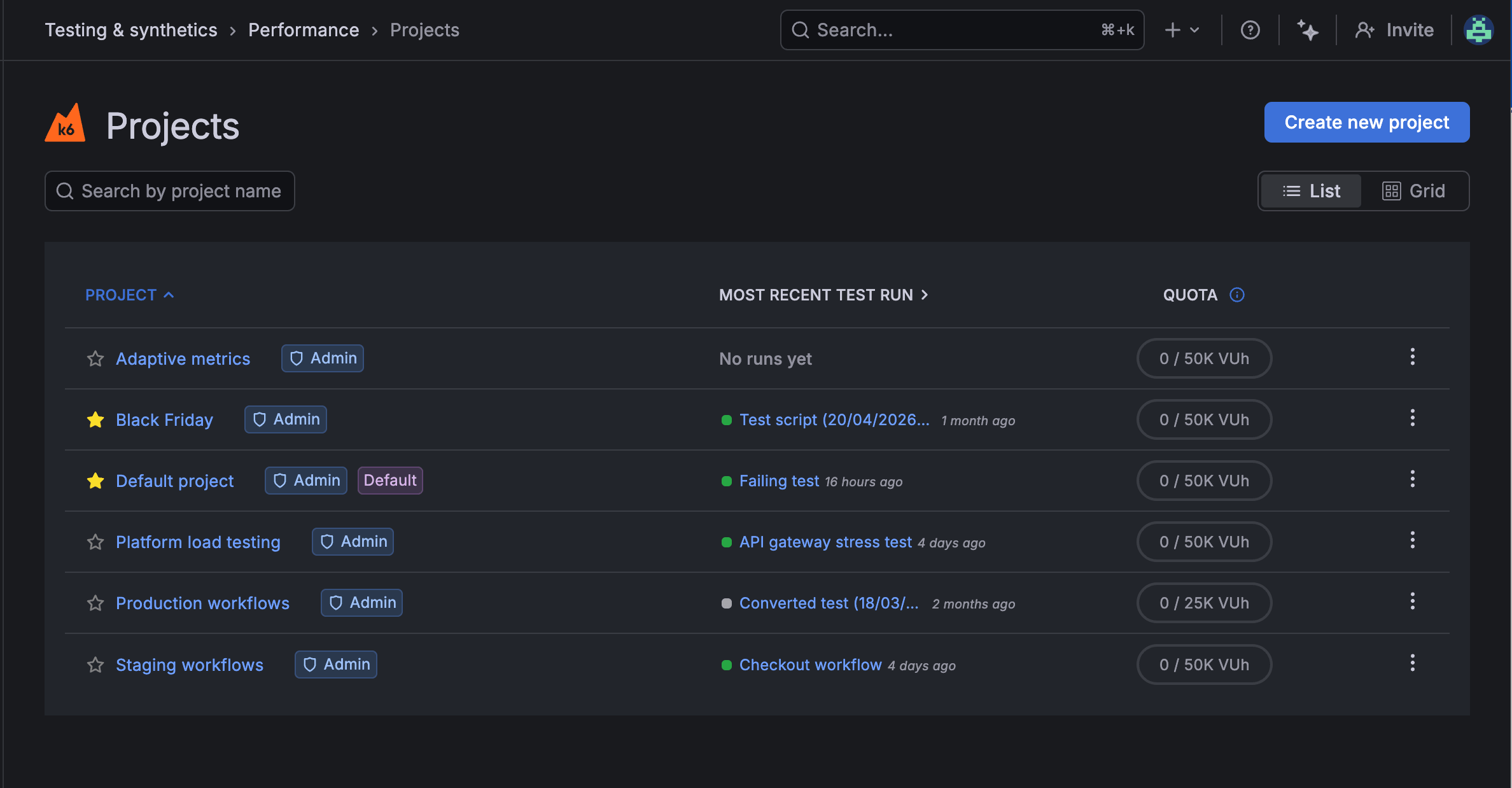
On the Projects page, use List or Grid to change the layout. Both views show the same information for each project:
Use Search by project name to filter the list, or click Create new project to add a project.
Project overview
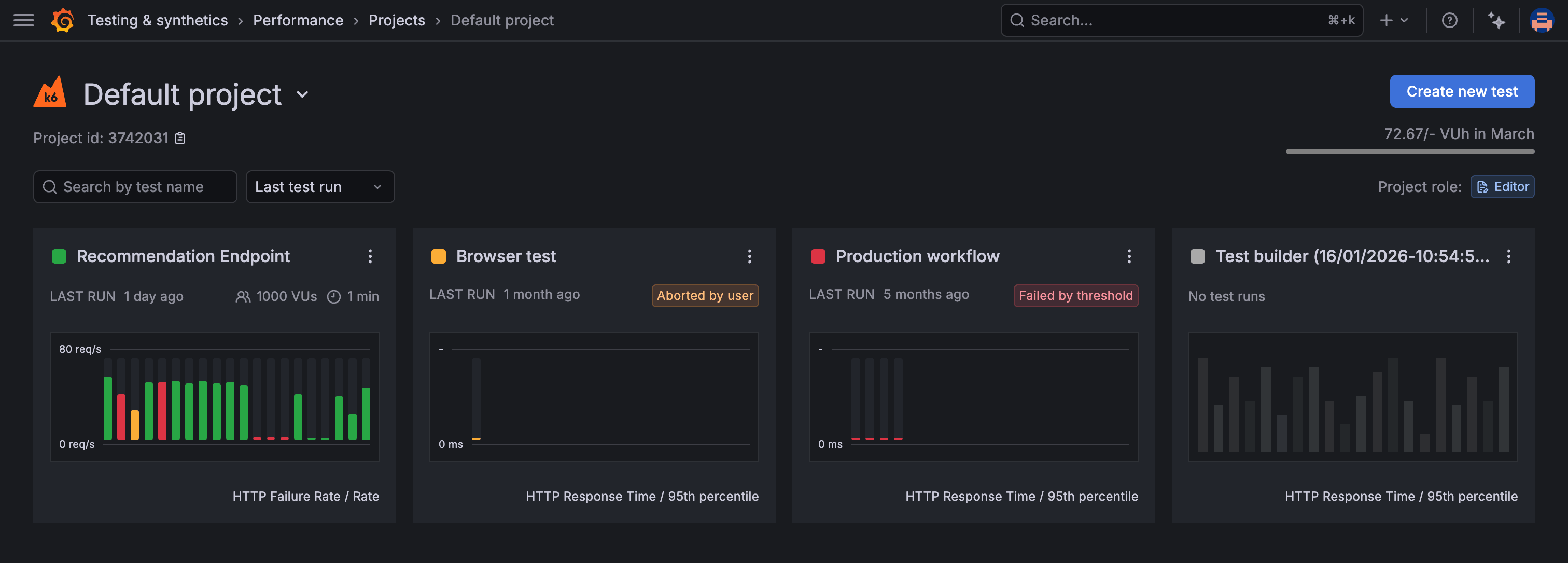
When you select a project from the Projects page, you can see an overview of all the tests in that project. Each test is comprised of individual test runs represented by bars in a chart. The bar length represents the values reported by the trending metric, and the color represents the test status.
Project ID
Each project has a unique identifier. You can view the project ID in the project overview page, under the project name.
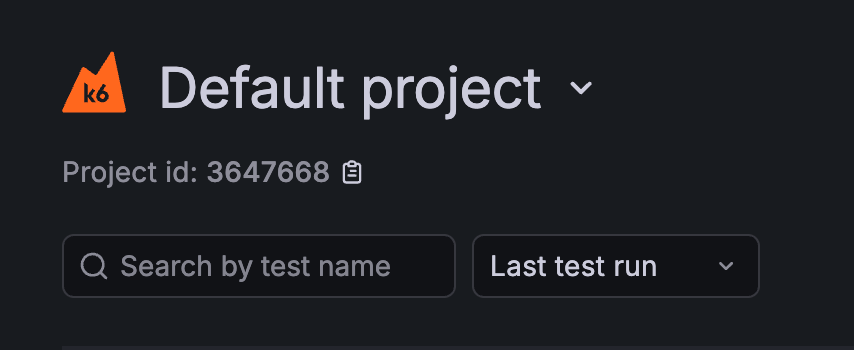
The project ID can be used to:
- Run tests from the CLI in a specific project.
- Interact with projects using the Grafana Cloud k6 API. For example, moving a test to a different project.
Group tests together
k6 groups test runs according to the test name. The name of the test is determined by one of the following:
- The test name in the Test Builder
- The test script filename
- The value of the
options.cloud.nameproperty in the test script (this overrides the filename).
Test run status
The color of the bar for a test run indicates its status:
- Green indicates the test finished with no failed thresholds.
- Yellow indicates that the test was interrupted.
- Red indicates that the test failed one or more thresholds.
For details of all test statuses, refer to Cloud test status codes.


